The Logo of XcelsusThe Logo of Xcelsus
Open Application Framework
  • Home
  • DOCUMENTATION
    • Application Framework
    • Project Efforts
    • QBar
  • FAQ
  • Home
  • DOCUMENTATION
    • Application Framework
    • Project Efforts
    • QBar
  • FAQ

QBar

Home/Documentation/QBar
Expand All Collapse All
  • QBar
    • Orders
    • Order History
    • Create Order
    • Calendar
    • Reservations
    • Service Calls
    • Reporting
      • Revenue
      • Daily seatgroup revenue
    • Configuration
      • Service Areas & Seatgroups
      • Menu
      • Menu Options
      • Service Groups
      • Allergens
      • Menu AI
  • App Settings
    • QBar Settings

Service Groups

36 views 0 23. June 2024

Service Groups

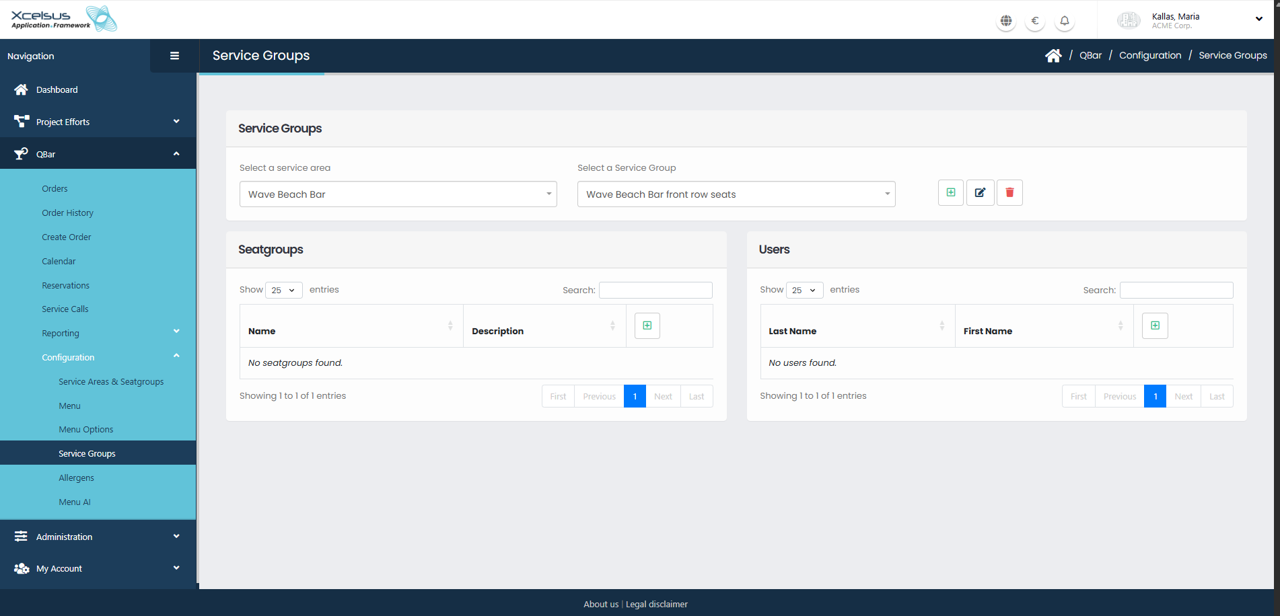
The Service Groups screen is used to organize seating, areas, and staff assignments within a selected service area. This functionality helps structure how service is managed, such as assigning users to specific zones or seat groups in a venue.

At the top of the page, you must first select a service area from the dropdown menu. Once a service area is selected, you can then choose a specific service group associated with that area. These selections determine which seat groups and users are displayed below.

The Seatgroups section displays all seat groups linked to the selected service group. If no seat groups are assigned, a message will indicate that none are found. You can add new seat groups by clicking the add (plus) icon in this section, or edit existing ones using the edit icon. Changes made here affect how seating is structured and managed during service.

The Users section shows the users assigned to the selected service group. This typically includes staff members responsible for that area, such as servers or attendants. You can add users to the service group using the add icon, making them available for assignments within that service area. If no users are currently assigned, the list will indicate that no users are found.

Both sections support searching and pagination, allowing you to efficiently manage large numbers of seat groups or users. Any changes made within the Service Groups screen are saved immediately and take effect across the system, ensuring that service areas, seating, and staff assignments remain organized and up to date.

Was this helpful?

Yes  No

Didn't find your answer? Contact Us

Previously
Menu Options
Up Next
Allergens
Developed by
  • Xcelsus GmbH
  • Xcelsus Hellas M.I.K.E.
SUPPORT
  • Knowledge Base
  • Video Manuals
SOCIAL
  • Facebook
  • Instagram
  • LinkedIn
  • Privacy Policy
  • Terms and Conditions
  • Cookie Policy (EU)
  • © 2026 xcelsus group. All Rights Reserved.

Manage Consent
To provide the best experiences, we use technologies like cookies to store and/or access device information. Consenting to these technologies will allow us to process data such as browsing behavior or unique IDs on this site. Not consenting or withdrawing consent, may adversely affect certain features and functions.
Functional Always active
The technical storage or access is strictly necessary for the legitimate purpose of enabling the use of a specific service explicitly requested by the subscriber or user, or for the sole purpose of carrying out the transmission of a communication over an electronic communications network.
Preferences
The technical storage or access is necessary for the legitimate purpose of storing preferences that are not requested by the subscriber or user.
Statistics
The technical storage or access that is used exclusively for statistical purposes. The technical storage or access that is used exclusively for anonymous statistical purposes. Without a subpoena, voluntary compliance on the part of your Internet Service Provider, or additional records from a third party, information stored or retrieved for this purpose alone cannot usually be used to identify you.
Marketing
The technical storage or access is required to create user profiles to send advertising, or to track the user on a website or across several websites for similar marketing purposes.
  • Manage options
  • Manage services
  • Manage {vendor_count} vendors
  • Read more about these purposes
View preferences
  • {title}
  • {title}
  • {title}