The Logo of XcelsusThe Logo of Xcelsus
Open Application Framework
  • Home
  • DOCUMENTATION
    • Application Framework
    • Project Efforts
    • QBar
  • FAQ
  • Home
  • DOCUMENTATION
    • Application Framework
    • Project Efforts
    • QBar
  • FAQ

QBar

Home/Documentation/QBar
Expand All Collapse All
  • QBar
    • Orders
    • Order History
    • Create Order
    • Calendar
    • Reservations
    • Service Calls
    • Reporting
      • Revenue
      • Daily seatgroup revenue
    • Configuration
      • Service Areas & Seatgroups
      • Menu
      • Menu Options
      • Service Groups
      • Allergens
      • Menu AI
  • App Settings
    • QBar Settings

Menu Options

32 views 0 23. June 2024

Menu Options

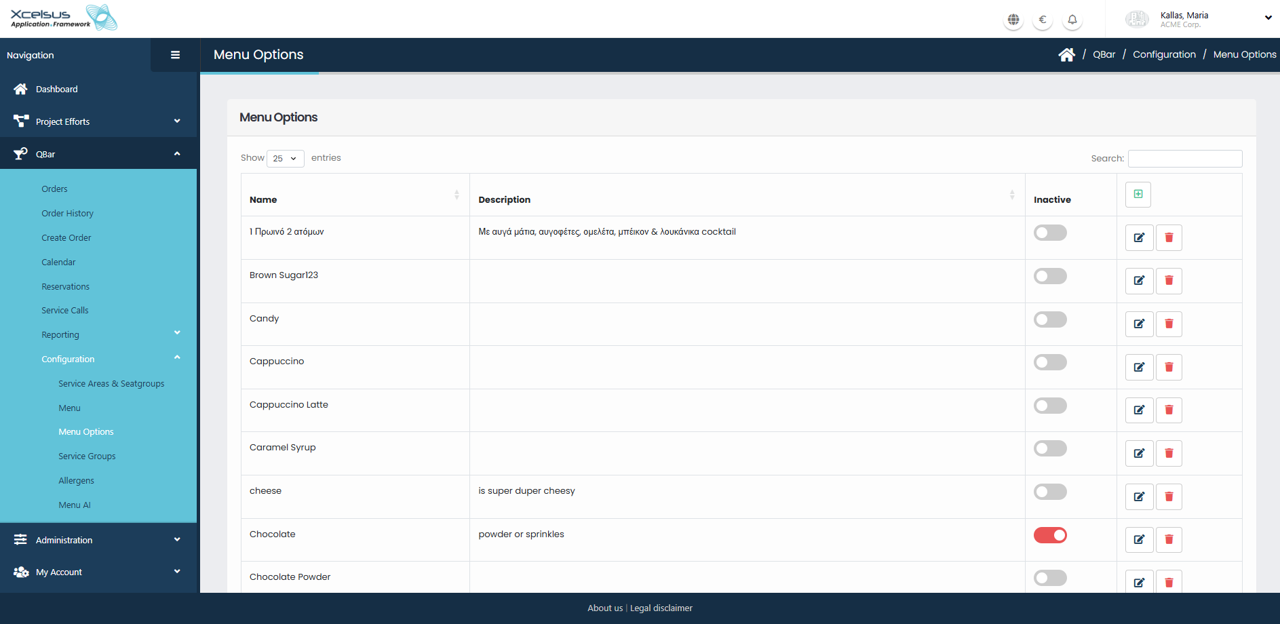
The Menu Options screen allows administrators to manage configurable options that can be attached to menu items, such as add-ons, modifiers, or selectable extras. This section is typically used to define choices that appear during order creation, for example syrups, toppings, or side selections.

When you open the Menu Options page, you will see a list of all existing menu options displayed in a table. Each entry includes the option’s name, a description, and its current active or inactive status. You can control how many entries are displayed at once using the entries selector at the top of the list, and you may use the search field to quickly locate a specific menu option by name.

To create a new menu option, click the add (plus) icon located above the list. This will open a form where you can enter the name and description of the option. Once saved, the new option will appear in the list and can be assigned to relevant menu items elsewhere in the system.

Existing menu options can be modified by clicking the edit (pencil) icon next to the corresponding row. The form will open with the current information pre-filled, allowing you to update the name or description as needed. After saving, the changes are immediately reflected in the list.

You can temporarily disable a menu option by toggling the inactive switch. Inactive options are not removed from the system but will no longer be available for selection during order creation. If a menu option is no longer required, it can be permanently removed by clicking the delete (trash) icon and confirming the action.

Was this helpful?

Yes  No

Didn't find your answer? Contact Us

Previously
Menu
Up Next
Service Groups
Developed by
  • Xcelsus GmbH
  • Xcelsus Hellas M.I.K.E.
SUPPORT
  • Knowledge Base
  • Video Manuals
SOCIAL
  • Facebook
  • Instagram
  • LinkedIn
  • Privacy Policy
  • Terms and Conditions
  • Cookie Policy (EU)
  • © 2026 xcelsus group. All Rights Reserved.

Manage Consent
To provide the best experiences, we use technologies like cookies to store and/or access device information. Consenting to these technologies will allow us to process data such as browsing behavior or unique IDs on this site. Not consenting or withdrawing consent, may adversely affect certain features and functions.
Functional Always active
The technical storage or access is strictly necessary for the legitimate purpose of enabling the use of a specific service explicitly requested by the subscriber or user, or for the sole purpose of carrying out the transmission of a communication over an electronic communications network.
Preferences
The technical storage or access is necessary for the legitimate purpose of storing preferences that are not requested by the subscriber or user.
Statistics
The technical storage or access that is used exclusively for statistical purposes. The technical storage or access that is used exclusively for anonymous statistical purposes. Without a subpoena, voluntary compliance on the part of your Internet Service Provider, or additional records from a third party, information stored or retrieved for this purpose alone cannot usually be used to identify you.
Marketing
The technical storage or access is required to create user profiles to send advertising, or to track the user on a website or across several websites for similar marketing purposes.
  • Manage options
  • Manage services
  • Manage {vendor_count} vendors
  • Read more about these purposes
View preferences
  • {title}
  • {title}
  • {title}