Menu
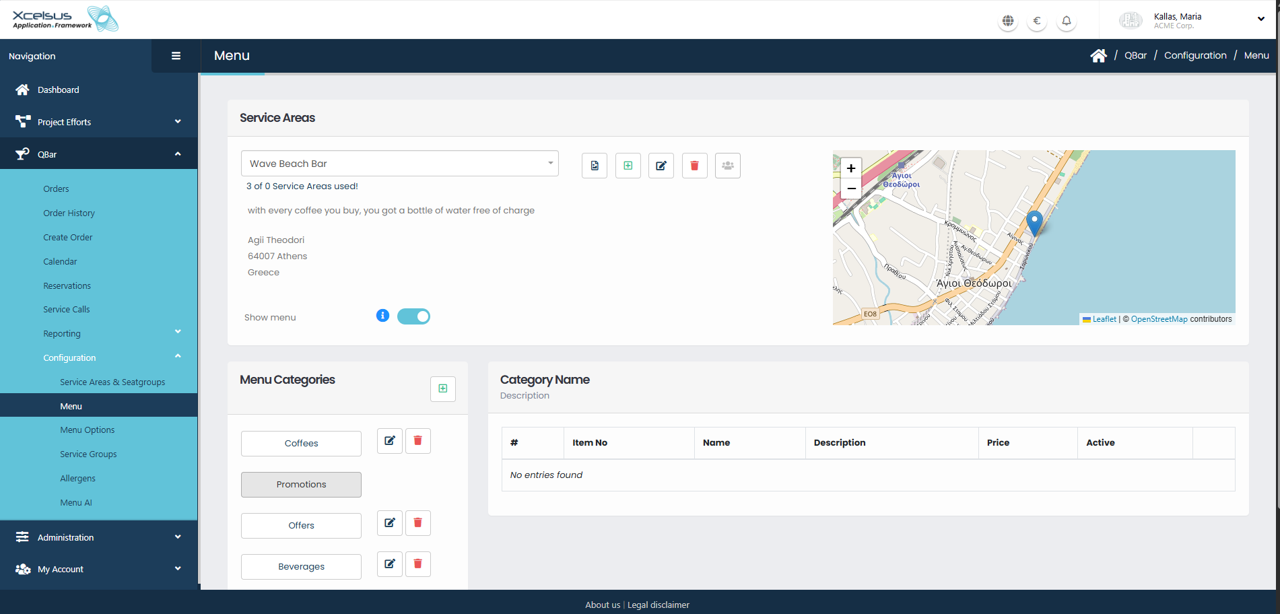
The Menu section is used to configure and manage the items available for ordering within a specific service area. At the top of the page, you can select the desired service area from the dropdown list. Once selected, the system displays service area details along with its location on the map, helping verify that menu changes are being applied to the correct location.
A toggle option allows you to control whether the menu is visible and available for the selected service area. When enabled, customers can view and order items assigned to this location. Informational text beneath the service area details can be used to display promotional messages or notes that are visible to customers.
Menu content is organized through Menu Categories, which are listed on the left side of the screen. Categories such as coffees, beverages, promotions, or offers help structure the menu in a clear and user-friendly way. You can add new categories, rename existing ones, or remove categories that are no longer needed using the available action icons.
When a category is selected, its items are displayed in the main content area. Each item includes an item number, name, description, price, and active status. From here, you can add new items, edit existing ones, or deactivate items without deleting them. This allows you to manage availability while keeping menu data intact.
All menu changes are saved directly within the selected service area, ensuring that each location can maintain a customized menu tailored to its offerings.