The Logo of XcelsusThe Logo of Xcelsus
Open Application Framework
  • Home
  • DOCUMENTATION
    • Application Framework
    • Project Efforts
    • QBar
  • FAQ
  • Home
  • DOCUMENTATION
    • Application Framework
    • Project Efforts
    • QBar
  • FAQ

QBar

Home/Documentation/QBar
Expand All Collapse All
  • QBar
    • Orders
    • Order History
    • Create Order
    • Calendar
    • Reservations
    • Service Calls
    • Reporting
      • Revenue
      • Daily seatgroup revenue
    • Configuration
      • Service Areas & Seatgroups
      • Menu
      • Menu Options
      • Service Groups
      • Allergens
      • Menu AI
  • App Settings
    • QBar Settings

Service Areas & Seatgroups

54 views 0 23. June 2024

Service Areas & Seatgroups

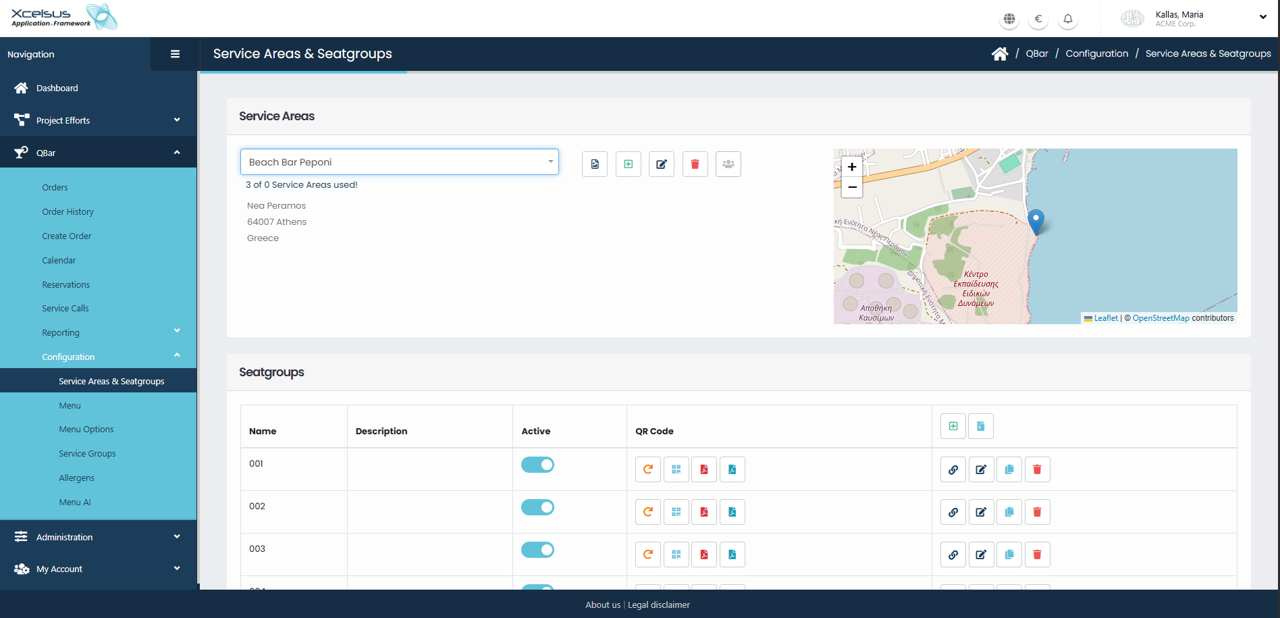
The Service Areas & Seatgroups section allows you to manage physical locations where services are provided and organize seating within those areas. To begin, select a service area from the Service Areas dropdown at the top of the page. Once selected, the system displays key information about the service area, including its name, address, and location on the interactive map. The map provides a visual reference to help confirm that the correct service area is selected.

Next to the service area selector, action icons allow you to create a new service area, edit the selected one, or delete it if it is no longer needed. Any changes made here directly affect how orders and seating are organized within the system.

Below the service area details, the Seatgroups table displays all seatgroups associated with the selected service area. Each seatgroup represents a defined seating unit, such as a table, zone, or section. The table shows the seatgroup name, description, and current active status. You can enable or disable a seatgroup using the active toggle, allowing you to temporarily remove it from use without deleting it.

Each seatgroup also provides quick access to QR code actions, which can be used for customer ordering or identification, depending on system configuration. Additional action icons allow you to edit seatgroup details or permanently remove a seatgroup. All changes are applied immediately after saving, ensuring that seating availability remains up to date.

Was this helpful?

Yes  No

Didn't find your answer? Contact Us

Previously
Configuration
Up Next
Menu
Developed by
  • Xcelsus GmbH
  • Xcelsus Hellas M.I.K.E.
SUPPORT
  • Knowledge Base
  • Video Manuals
SOCIAL
  • Facebook
  • Instagram
  • LinkedIn
  • Privacy Policy
  • Terms and Conditions
  • Cookie Policy (EU)
  • © 2026 xcelsus group. All Rights Reserved.

Manage Consent
To provide the best experiences, we use technologies like cookies to store and/or access device information. Consenting to these technologies will allow us to process data such as browsing behavior or unique IDs on this site. Not consenting or withdrawing consent, may adversely affect certain features and functions.
Functional Always active
The technical storage or access is strictly necessary for the legitimate purpose of enabling the use of a specific service explicitly requested by the subscriber or user, or for the sole purpose of carrying out the transmission of a communication over an electronic communications network.
Preferences
The technical storage or access is necessary for the legitimate purpose of storing preferences that are not requested by the subscriber or user.
Statistics
The technical storage or access that is used exclusively for statistical purposes. The technical storage or access that is used exclusively for anonymous statistical purposes. Without a subpoena, voluntary compliance on the part of your Internet Service Provider, or additional records from a third party, information stored or retrieved for this purpose alone cannot usually be used to identify you.
Marketing
The technical storage or access is required to create user profiles to send advertising, or to track the user on a website or across several websites for similar marketing purposes.
  • Manage options
  • Manage services
  • Manage {vendor_count} vendors
  • Read more about these purposes
View preferences
  • {title}
  • {title}
  • {title}