Using Menu AI
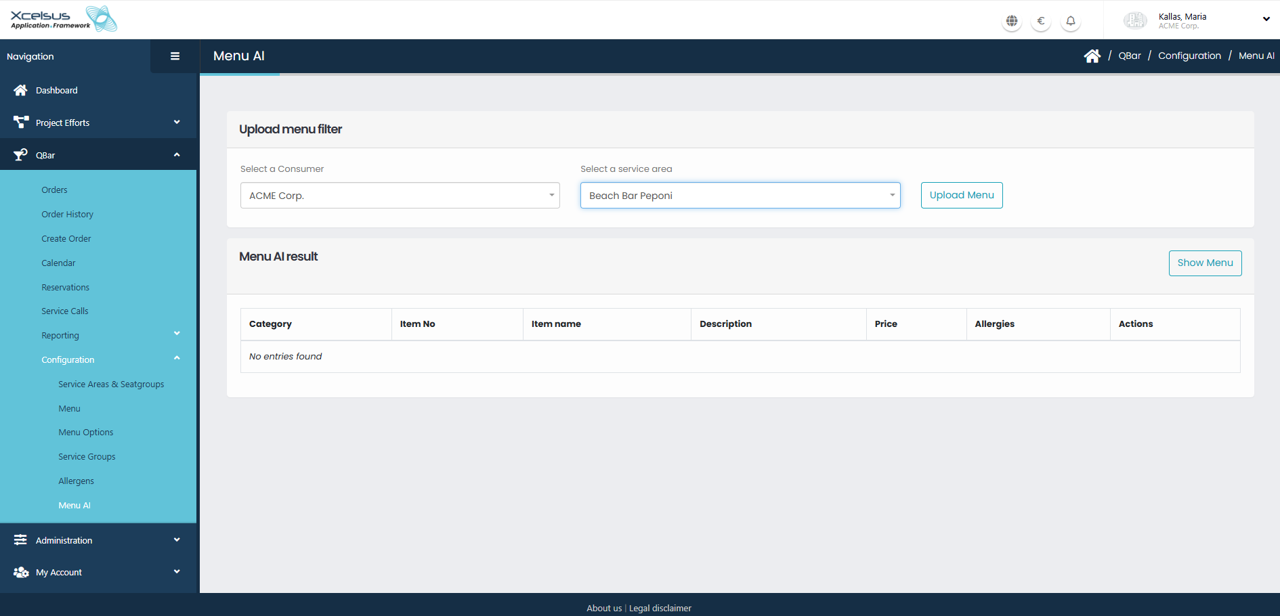
The Menu AI section allows users to upload, view, and manage menu data for a specific consumer and service area. At the top of the page, the Upload menu filter area is used to define the context in which menus are managed. Users must first select a Consumer from the dropdown list, followed by the appropriate service area. These selections determine which menu data will be displayed and managed on the screen.
After selecting the consumer and service area, clicking the Upload Menu button allows a new menu to be added to the system. This process uploads menu information and associates it with the selected service area, making it available for display and further actions within Menu AI.
The Menu AI result section displays all menu items related to the selected filters in a tabular format. Each entry includes details such as category, item number, item name, description, price, allergens, and available actions. If no menu data exists for the selected configuration, the system will indicate that no entries were found.
Once menu data is available, users can click the Show Menu button to load and display the items in the results table. From this view, users also have the option to export the displayed menu. By clicking the Export to PDF button, the system generates a PDF document containing the currently displayed menu items. This exported file can be used for offline review, printing, or sharing with stakeholders, ensuring menu information can be easily distributed outside the application.