Managing Reservations
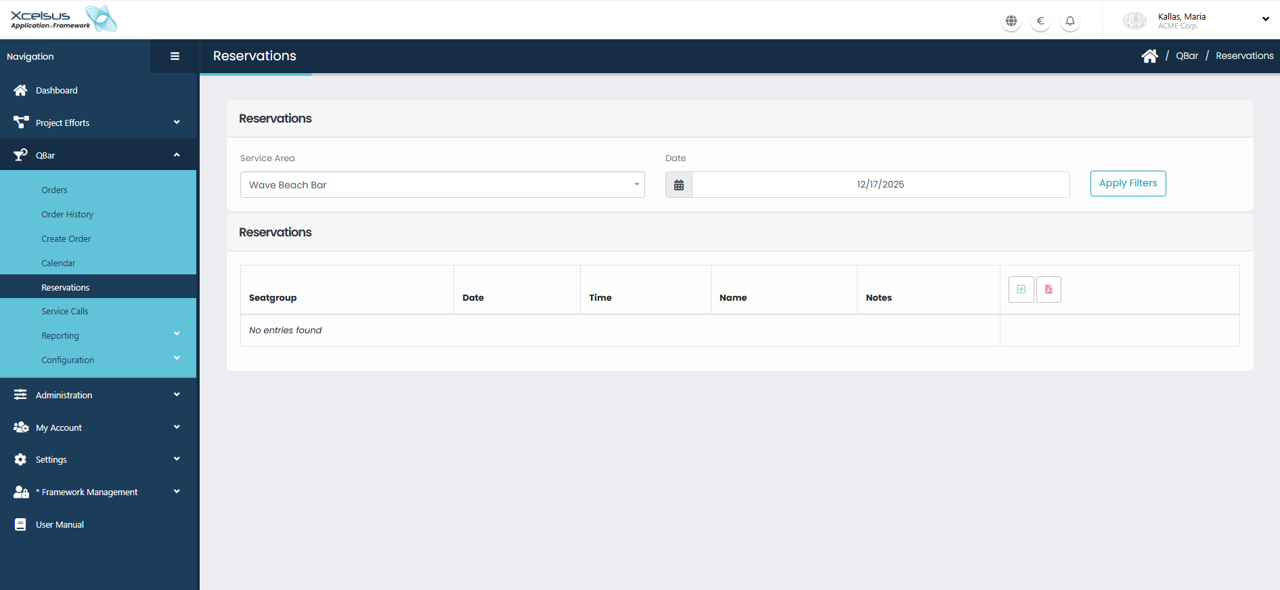
The Reservations screen is used to view and manage seat or table reservations for a selected service area and date. At the top of the page, you can filter reservations by choosing a Service Area and selecting a specific Date. Once the filters are set, clicking Apply Filters refreshes the list to display only the relevant reservations.
All reservations are displayed in a table showing key information such as Seatgroup, Date, Time, Name, and any associated Notes. This overview makes it easy to track upcoming reservations and identify availability. If no reservations exist for the selected criteria, the system will display a message indicating that no entries were found.
From this screen, users can also create new reservations or manage existing ones using the action icons provided in the table header. This ensures reservations can be efficiently organized and updated as needed, helping staff maintain accurate scheduling and service planning.