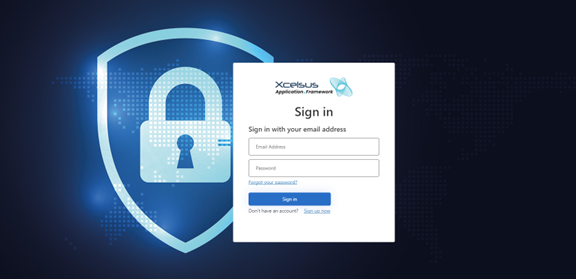
The first thing you will need to do, is fill in your email and password. If by chance, you have forgotten your password you can reset it by selecting the “Forgot your password?” option.
If you do not already have an account, you can create yours by clicking “Sign up now”. You will need only an email and a password for this process.
Τhe first page, that will appear with your login, is the Dashboard. The tools at the top right will be available in each page of your navigation.
- Select language, Add funds and QBar notifications icons
- Your user’s dropdown settings list
- Home page button
Υou can choose one of the available languages, in which all the entities will be translated on the website.
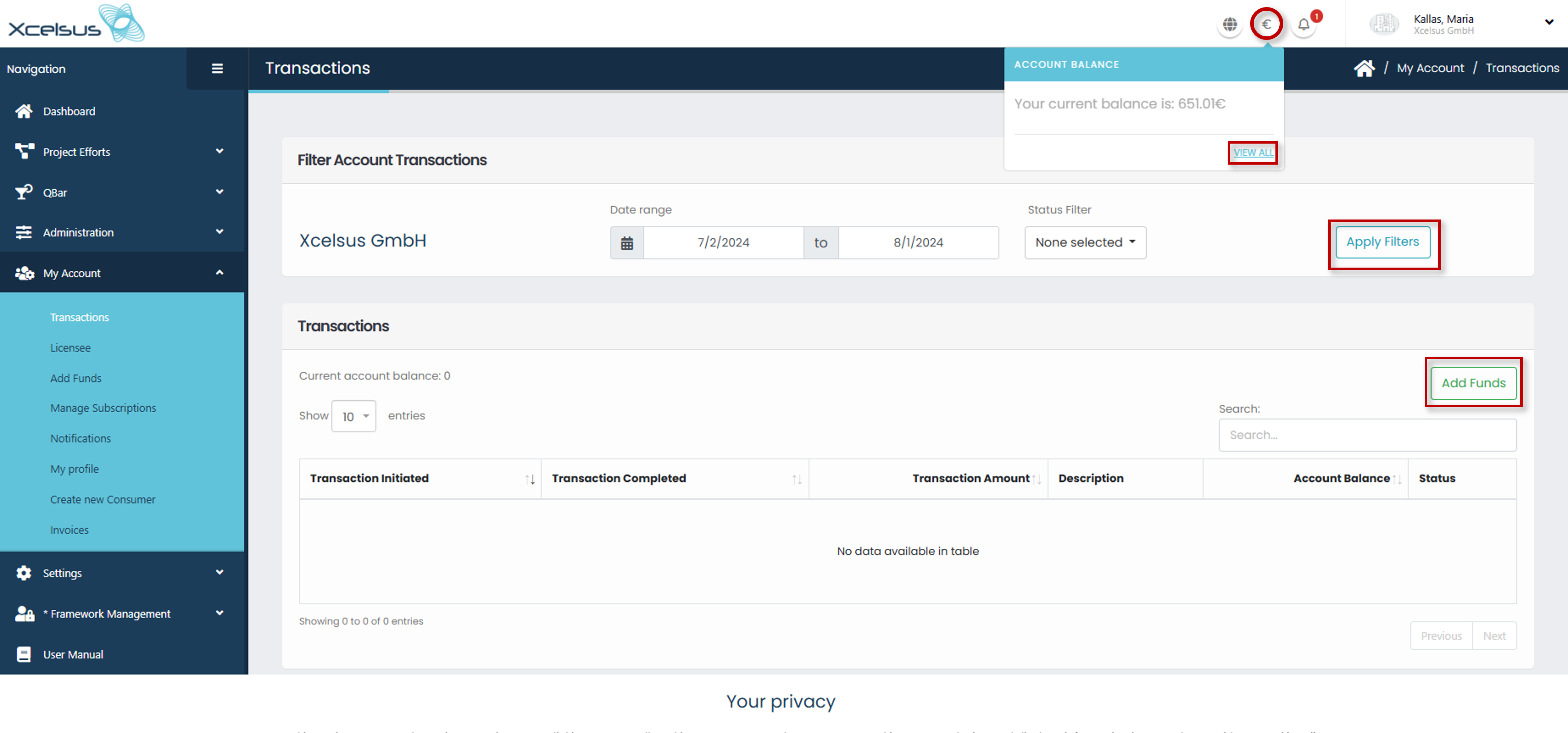
By clicking the euro symbol button you are able to see your account balance. When you click the “Add Funds”, a new view appears. There the user can set the desired date range and, after he clicks the “Apply filters”, he gets a detailed table with the following information:
- Transaction Initiated date and time
- Transaction Completed date and time
- Transaction Amount
- Description
- Account Balance
- Status (completed etc.)
By clicking the blue double paper sheet icon on the right you can copy the info you want.
By clicking on the bell icon, you can see the latest 10 Notifications you got. The occasions we receive a notification are:
-
- New order received
- Service call received
- Account Balance Below Zero
- New Invoice
- User invitation
- User invitation acceptance
- User invitation declined
- Pause Subscription
- Insufficient balance for order
- Menu item out of stock
More details on the “Notifications” page.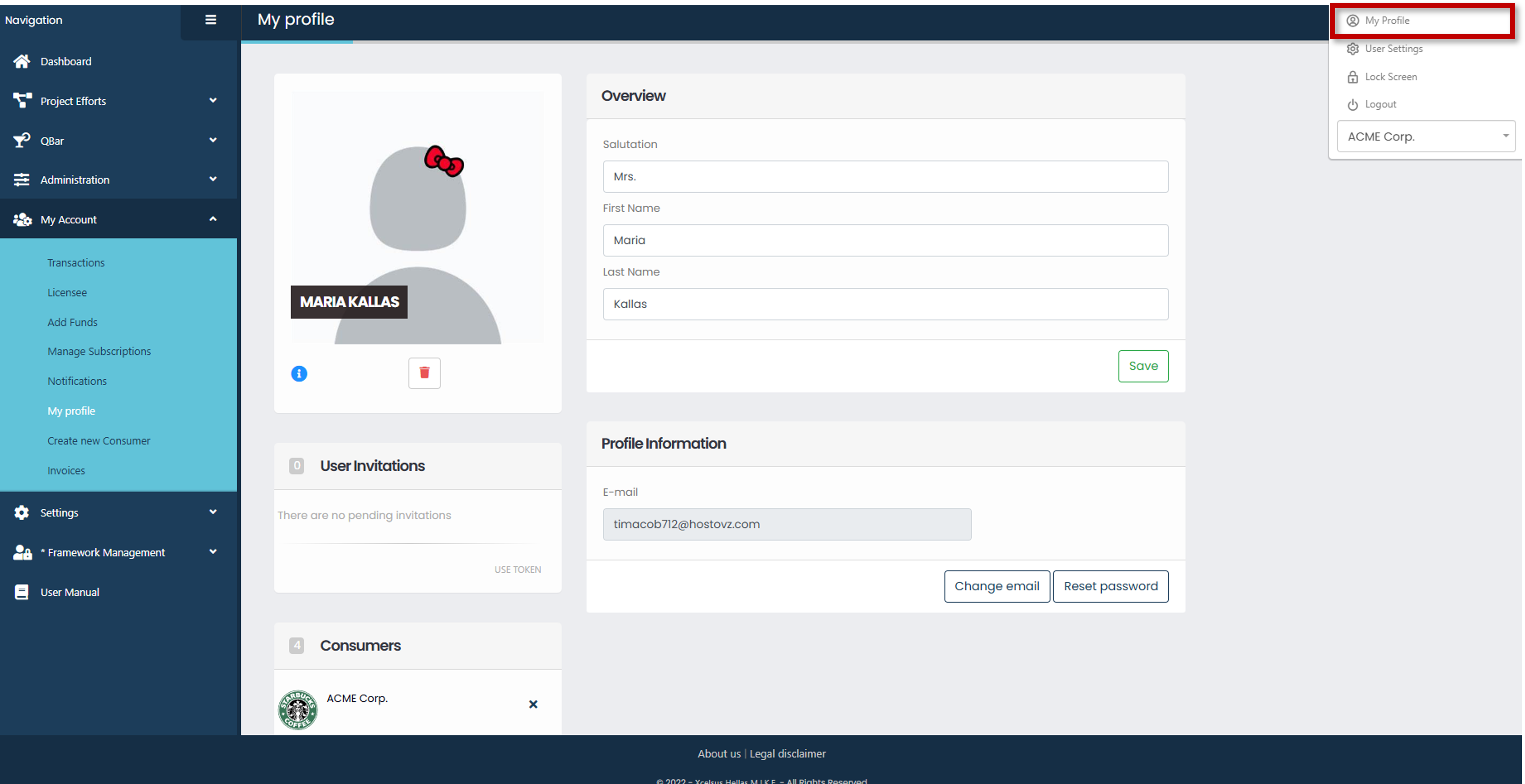
In “My profile” page, you are able to modify your overview information, upload a profile picture for your user, set your user’s email and have an overview of the connected consumers and the user invitations, user has received, as well. Do not forget to save your changes.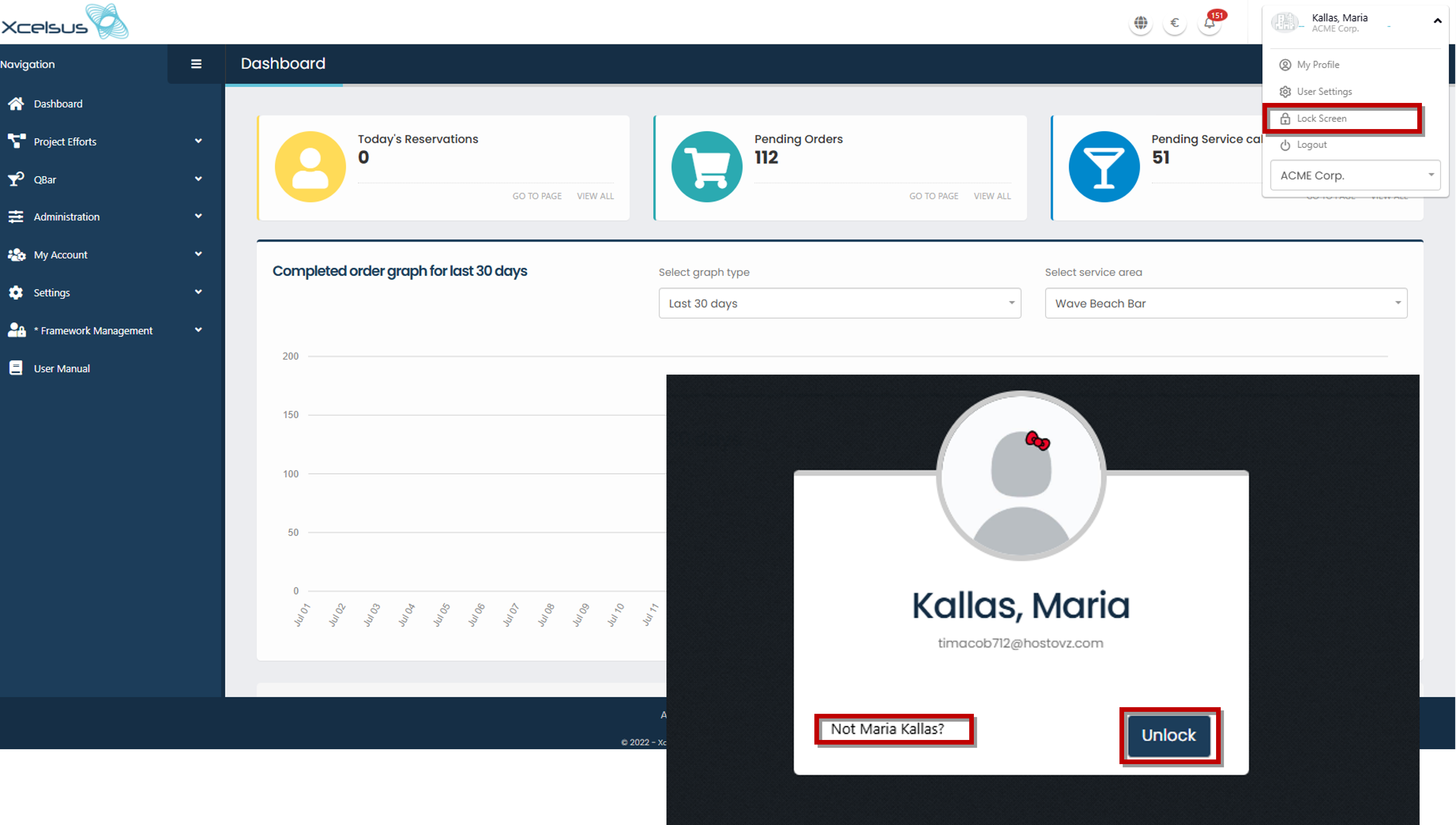
Lock screen tool: Click the “Unlock” button to to return to the previously viewed view. If you are not logged in with the right user, click the “Not (username)?” that leads you to the log in page, so you are able to log in with the user you need.
The displayed list shows the Consumers your User have, so you are able to select through which one of them you will navigate.