The Logo of XcelsusThe Logo of Xcelsus
Open Application Framework
  • Home
  • DOCUMENTATION
    • Application Framework
    • Project Efforts
    • QBar
  • FAQ
  • Home
  • DOCUMENTATION
    • Application Framework
    • Project Efforts
    • QBar
  • FAQ

Application Framework

Home/Documentation/Application Framework
Expand All Collapse All
  • Registration process
  • Dashboard and toolbar explanation
  • Application Framework
    • Administration
      • Contacts
      • Companies
      • Customers
      • Employees
      • Users
      • Authorization
        • User Groups
        • User Permissions
        • Permissions Overview
      • Vat Rates
      • User Invitations
      • Translation
    • My Account
      • Transactions
      • Licensee
      • Add Funds
      • Manage Subscriptions
      • Notifications
      • My profile
      • Create new Consumer
      • Invoices
    • Settings
      • General Settings
      • User Settings
      • Project Efforts Settings

Employees

30 views 0 23. June 2024

Employees Overview

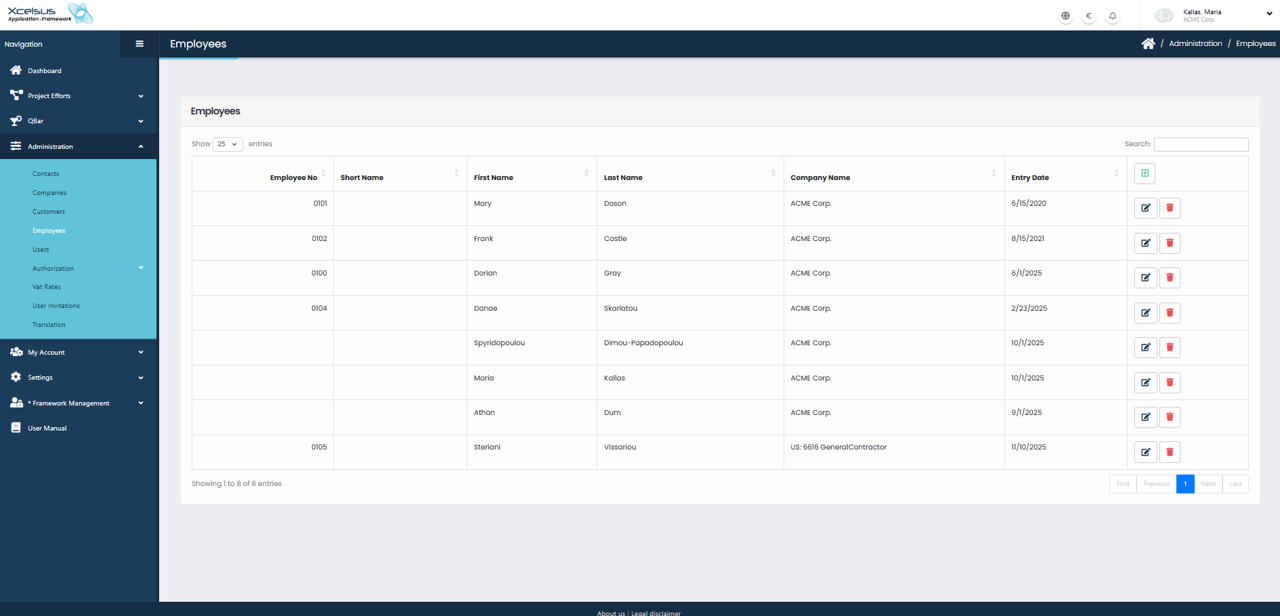
The Employees section is part of the Administration module and is used to manage employee records within the system. From this screen, users can view, add, edit, and remove employees, as well as search and organize employee information efficiently.

The Employees list displays all existing employees in a table format. Each row represents a single employee and includes details such as Employee Number, Short Name, First Name, Last Name, Company Name, and Entry Date. This information provides a quick overview of each employee and their associated company.

At the top of the list, users can control how many entries are displayed at once and use the search field to quickly locate a specific employee. Clicking on column headers allows sorting by fields such as name or company, making it easier to organize large employee lists.

On the right side of each employee row, action icons are available. The edit (pencil) icon allows users to modify the employee’s information, while the delete (trash) icon removes the employee from the system after confirmation. To create a new employee, users click the green plus (+) button, which opens the Add Employee form.
Adding a New Employee

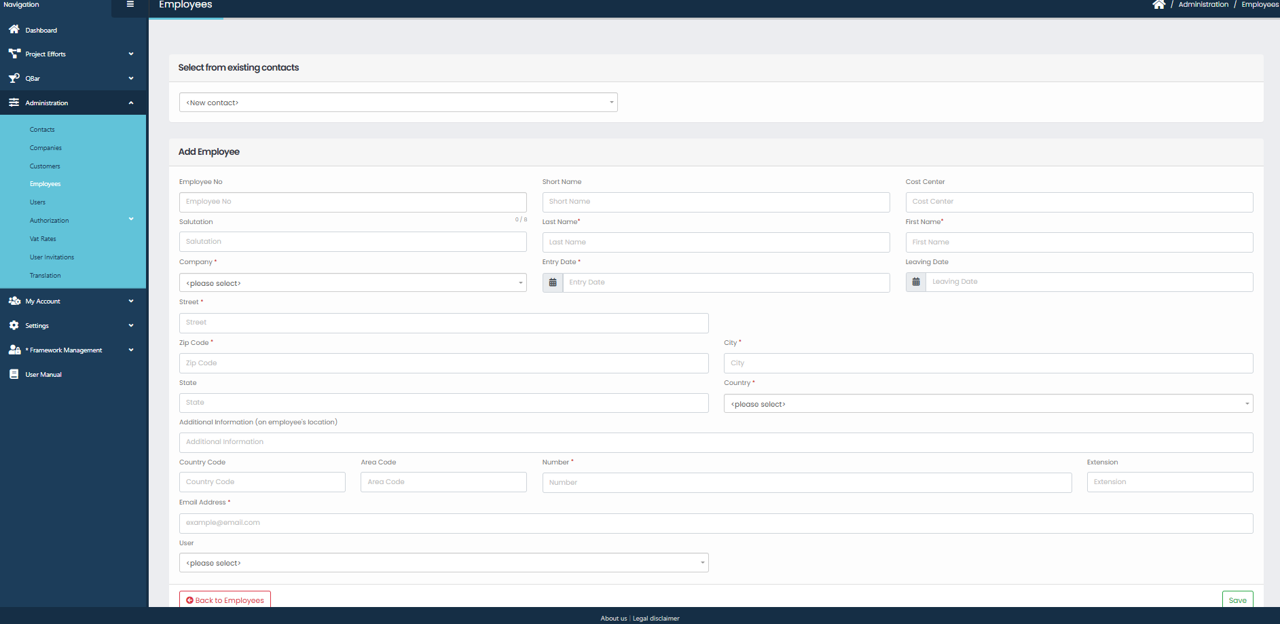
Clicking the green plus (+) button on the Employees list opens the Add Employee screen. This screen is used to create a new employee record and, if needed, associate it with an existing contact.

At the top of the form, users can choose to select from existing contacts. If a contact is selected, relevant fields may be pre-filled automatically. If no existing contact is selected, the employee information can be entered manually.

The form includes fields for Employee Number and Short Name, which help uniquely identify the employee in the system. Users can also enter a salutation, first name, and last name. The Company field is required and must be selected from the available companies to associate the employee with the correct organization.

Employment-related details such as Entry Date and Leaving Date allow tracking of the employee’s tenure. Additional fields like Cost Center can be used for internal accounting or organizational purposes.

Address information can be entered, including street, zip code, city, state, and country. There is also an Additional Information field that can be used to record notes related to the employee’s location or other relevant details.

Contact information is captured through phone number fields, including country code, area code, number, and extension, as well as an email address. Finally, a system user can be assigned to the employee if applicable, linking the employee record to a user account.

Once all required information is completed, clicking the Save button at the bottom right creates the employee record. If the user decides not to proceed, clicking Back to Employees returns to the Employees list without saving any changes.

Was this helpful?

Yes  No

Didn't find your answer? Contact Us

Previously
Customers
Up Next
Users
Developed by
  • Xcelsus GmbH
  • Xcelsus Hellas M.I.K.E.
SUPPORT
  • Knowledge Base
  • Video Manuals
SOCIAL
  • Facebook
  • Instagram
  • LinkedIn
  • Privacy Policy
  • Terms and Conditions
  • Cookie Policy (EU)
  • © 2026 xcelsus group. All Rights Reserved.

Manage Consent
To provide the best experiences, we use technologies like cookies to store and/or access device information. Consenting to these technologies will allow us to process data such as browsing behavior or unique IDs on this site. Not consenting or withdrawing consent, may adversely affect certain features and functions.
Functional Always active
The technical storage or access is strictly necessary for the legitimate purpose of enabling the use of a specific service explicitly requested by the subscriber or user, or for the sole purpose of carrying out the transmission of a communication over an electronic communications network.
Preferences
The technical storage or access is necessary for the legitimate purpose of storing preferences that are not requested by the subscriber or user.
Statistics
The technical storage or access that is used exclusively for statistical purposes. The technical storage or access that is used exclusively for anonymous statistical purposes. Without a subpoena, voluntary compliance on the part of your Internet Service Provider, or additional records from a third party, information stored or retrieved for this purpose alone cannot usually be used to identify you.
Marketing
The technical storage or access is required to create user profiles to send advertising, or to track the user on a website or across several websites for similar marketing purposes.
  • Manage options
  • Manage services
  • Manage {vendor_count} vendors
  • Read more about these purposes
View preferences
  • {title}
  • {title}
  • {title}