My Profile
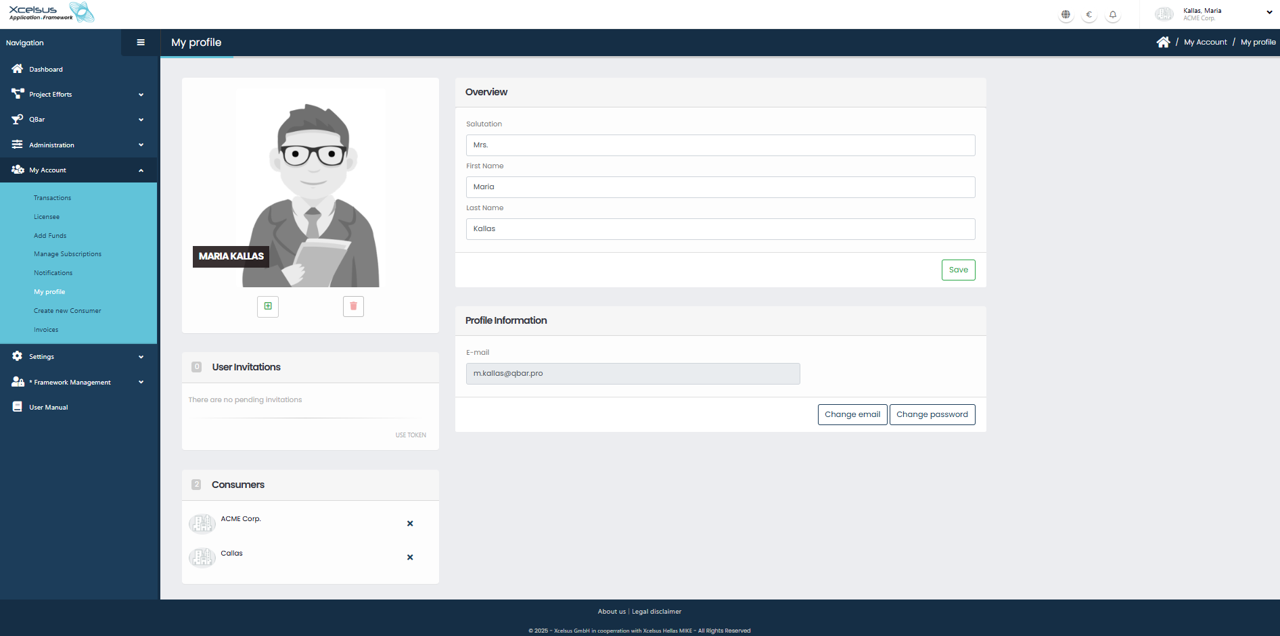
The My Profile page allows users to view and update their personal account information. This page is available under the My Account section in the navigation menu and provides an overview of both personal details and account settings.
At the top of the page, the Overview section displays the user’s salutation, first name, and last name. These fields can be edited directly. After making any changes, click the Save button to update the information. A profile avatar is displayed on the left side of the page, providing a visual identifier for the user.
Below the overview, the Profile Information section displays the user’s registered email address. The email field itself is read-only, but users can update their credentials using the Change email or Change password buttons. These options allow users to maintain secure and up-to-date login information.
The User Invitations section shows any pending invitations associated with the account. If no invitations are pending, this will be clearly indicated. Additionally, the Consumers section lists the organizations or consumers the user is currently associated with. Each consumer entry includes an option to remove the association if applicable.
All changes made on this page take effect immediately after saving, ensuring that the user’s account information remains accurate and current.
Change password and Change email verification:
Since password change and email change are sensitive actions, we need to verify that it’s really you
1. Click on the “Send verification code to current email” button
2. You will receive an email that includes the necessary token that we need so we can verify your identity. Please input the token in the field “Verification Code” and click Verify.
if the token is correct:
- you’ll move on to the next view where you can update your password / email
if the token is incorrect:
- please make sure then token is correct or try again.

After you have been successfully verified:
Password change:
There are two fields: “New password” and “Repeat password” that you need to fill out with matching passwords. You can also hit the “Randomize” button to randomize your password. After you are done click the “Save” button to save your changes.

Email change:
There are two fields: “New email address” and “Verification Code”. Very similarly to the steps you followed before, now we need to verify that your new email address is valid and you have access to it.
1. Fill in the “New email address” field and click the “Get verification code” button.
2. We have sent a verification code to your new email address, please use the code to fill in the “Verification Code” field.
3. Click “Verify”.
If your token is correct then you can click save and your email address will be updated.
If not, then please try again.
