Notifications
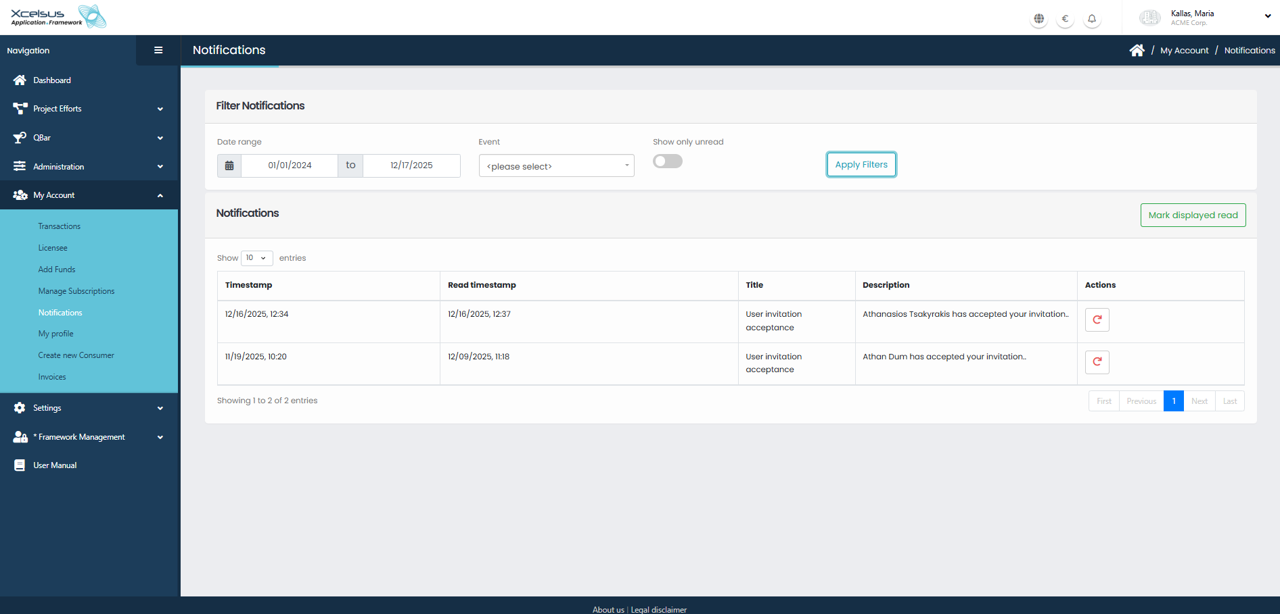
The Notifications page allows users to view and manage system-generated notifications related to their account activity. This page can be accessed from the My Account section in the main navigation menu.
At the top of the page, users can filter notifications using the Filter Notifications panel. You can define a date range by selecting a start and end date, choose a specific event type from the dropdown list, and optionally enable the Show only unread toggle to display only notifications that have not yet been read. Once the desired filters are set, click the Apply Filters button to update the results shown below.
All notifications are displayed in a table that includes the Timestamp, Read timestamp, Title, and Description of each notification. This makes it easy to identify when an event occurred and whether it has already been viewed. If a notification has not been read, it will not contain a read timestamp until it is marked as read.
Each notification includes an action icon that allows you to mark it as read individually. In addition, the Mark displayed read button at the top right of the notifications list can be used to mark all currently visible notifications as read at once. Pagination controls at the bottom of the table allow you to navigate through multiple pages when a large number of notifications are available.