Welcome to the Contacts page. This is where you can see and manage all your contact information in one place.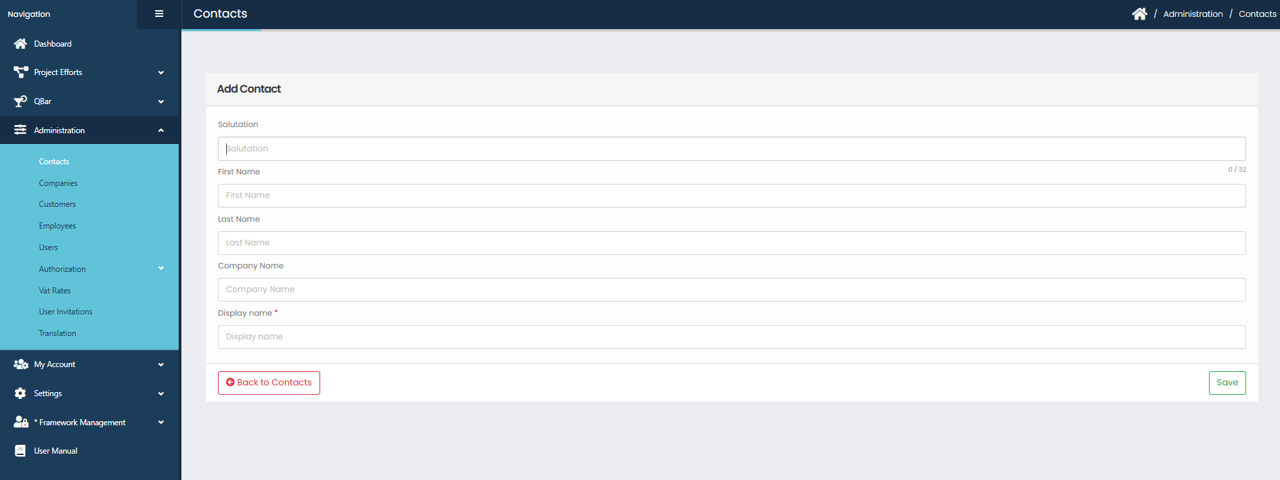
Contacts – Add and Manage Contacts
The Contacts list shows all saved contacts in a table. Each row represents one contact and displays important information such as Display Name, Salutation, First Name, Last Name, and Company Name.
At the top of the list, you can choose how many contacts are shown per page. On the right side, there is a search field that lets you quickly find a contact by typing a name or company.
On the right side of each contact row, there are action buttons. The edit button allows you to update the contact’s information, while the delete button removes the contact after confirmation.
To add a new contact, click the green plus (+) button above the list. This opens the Add Contact form where you can enter the contact details.
Add Contact Screen
Adding a New Contact
To add a new contact, click the green plus (+) button on the Contacts list page. This opens the Add Contact form where you can enter the contact’s information.
At the top of the form, you can enter a salutation such as Mr. or Mrs., followed by the contact’s first name and last name. You can also enter the company name the contact belongs to.
The Display Name field is required. This is the name that will appear in the contacts list, so make sure it is clear and recognizable.
Once all required information is filled in, click the Save button at the bottom right to create the contact. If you decide not to continue, click Back to Contacts and your changes will not be saved.
Changing Contact Information
To edit a contact, find the contact in the list. You can use the search box to locate it faster. Click the edit (pencil) icon next to the contact.
The form will open with the existing information already filled in. Make your changes and click Save to update the contact.
Removing a Contact
To delete a contact, locate it in the contacts list and click the delete (trash) icon next to it.
You will be asked to confirm the action before the contact is permanently removed.
Organizing and Finding Contacts
You can click on column headers such as Display Name, First Name, or Company Name to sort the contacts.
Use the search field to quickly find specific contacts in large lists.