Viewing and Filtering Transactions
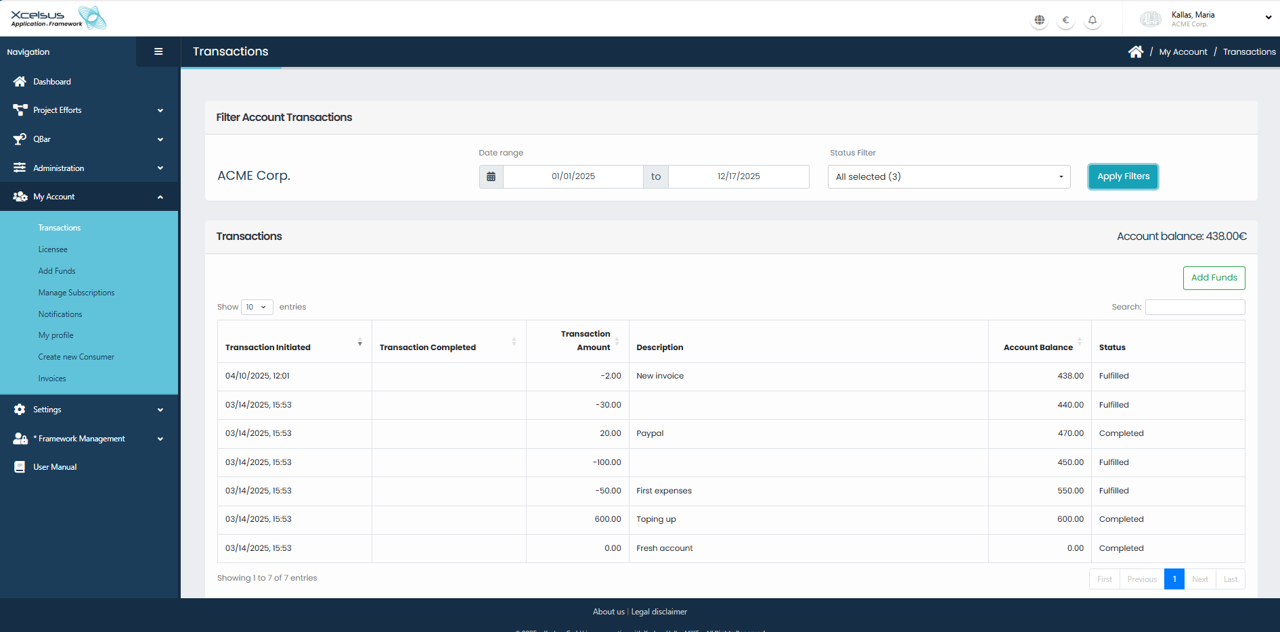
The Transactions page allows you to review all financial activity associated with your account. This includes invoices, payments, top-ups, and other balance-affecting actions. At the top of the page, the Filter Account Transactions section lets you narrow down the displayed results to quickly find specific entries.
You can filter transactions by date range using the From and To date fields. Click the calendar icons to select the desired dates, then choose one or more transaction states from the Status Filter dropdown. Once your criteria are set, click Apply Filters to refresh the list based on your selection.
Below the filter area, the transactions table displays detailed information for each entry, including the transaction initiation date, completion date, transaction amount, description, resulting account balance, and status. Positive amounts represent funds added to the account, while negative amounts indicate charges or deductions. The account balance column shows the running balance after each transaction is applied.
You can control how many transactions are shown at once using the entries selector above the table, and use the search field to quickly locate a transaction by keyword. Column headers can be used to sort the list, making it easier to review transactions in chronological or numerical order.
The current account balance is displayed in the upper right corner of the page for quick reference. If you need to add funds, click the Add Funds button to initiate a new top-up.