To add a new surcharge click the add icon: a form will appear where you can customise and save the values.
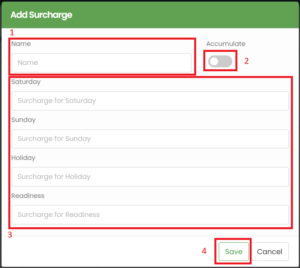
For each surcharge you must enter a name (1) and at least one value (3), but several are possible, if you intend to automatically apply different surcharges in different circumstances, e.g. Sundays vs. holidays. Finally, you can indicate if its effect has to be cumulated (2) with others when more than one condition applies (e.g. the employee worked on a Sunday that is also a holiday) and save the surcharge (4).
To edit a Surcharge, click the corresponding edit button and fill out the form that appears. Similarly to what happens when adding a surcharge, you will need a name (1) and at least one value (3) and you will be able to indicate if the surcharge accumulates and finally to save it.

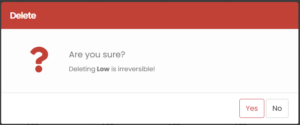
To delete a Surcharge click the corresponding delete button and confirm when the pop-up appears.