The Logo of XcelsusThe Logo of Xcelsus
Open Application Framework
  • Home
  • DOCUMENTATION
    • Application Framework
    • Project Efforts
    • QBar
  • FAQ
  • Home
  • DOCUMENTATION
    • Application Framework
    • Project Efforts
    • QBar
  • FAQ

Project Efforts

Home/Documentation/Project Efforts
Expand All Collapse All
  • Project Efforts
    • Workhours
    • Charging
    • Manage Charge Invoices
    • Reports
      • Statistics
    • Configuration
      • Projects
      • General Contractors
      • Surcharges
  • Project Efforts Settings

Projects

22 views 0 23. June 2024

The usefulness of the Projects page is the ability of a project manager/user to have an overview of the projects that the company has, as well as the people-employees that belong to each project. Also, he can modify, (add, update or delete) a project as well as the people that belong to each project.

Picture4

View consists of a table filled with Projects.

  • The including information in this table are:
  • The name of the project
  • The name of the customer
  • The duration-period of time of the project
  • The budget of each project and the expenses a well
  • The budget left after deduction of expenses
*Permission needed: Read projects
 

The 4 most basic actions are highlighted in red.

  • Add button
  • Edit button
  •  Delete button
  • Manage project employees button

Clicking the add button a modal pops that allows the user to add a new project.

Picture5

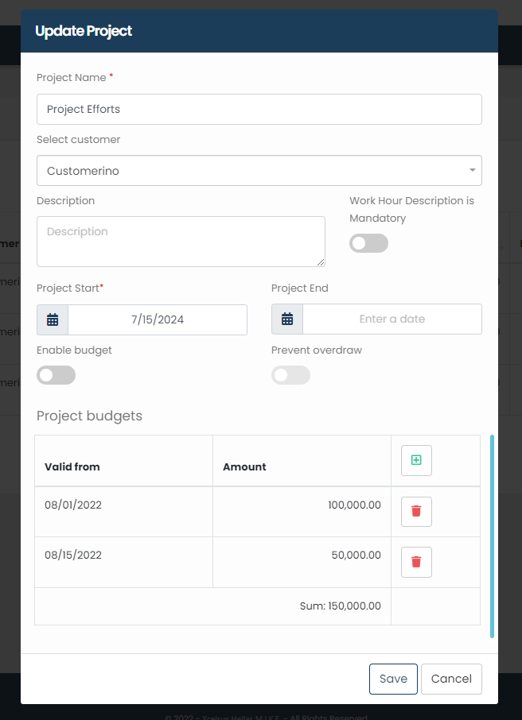
The user can add a project name, select the customer relevant to the project, write a small description if it is needed, enable if the Workhour Description would be mandatory or not, select the starting and the ending dates for the project, enable or disable the “Budget” and “Prevent overdraw” toggles and set a valid date and an amount as well by clicking the “Add” button in the last table named “Project budgets”.

note: fields with * are required.

Click the “Save” buttons to save your changes.

*Permission needed: Create projects

Picture2

Clicking the edit button a modal pops that allows the user to edit a project.

Clicking the delete button a modal pops that asks the user if he wants to delete the project.

*Permissions needed: Update projects and Delete projects

Picture3

By clicking the “Manage project employees” button, the user can see a new view, which consists two tables. In the first one, the user is able to see the information about the project he selected. In the second table, the user can see the current project employees and by clicking the “Add” button he can add a new project employee.

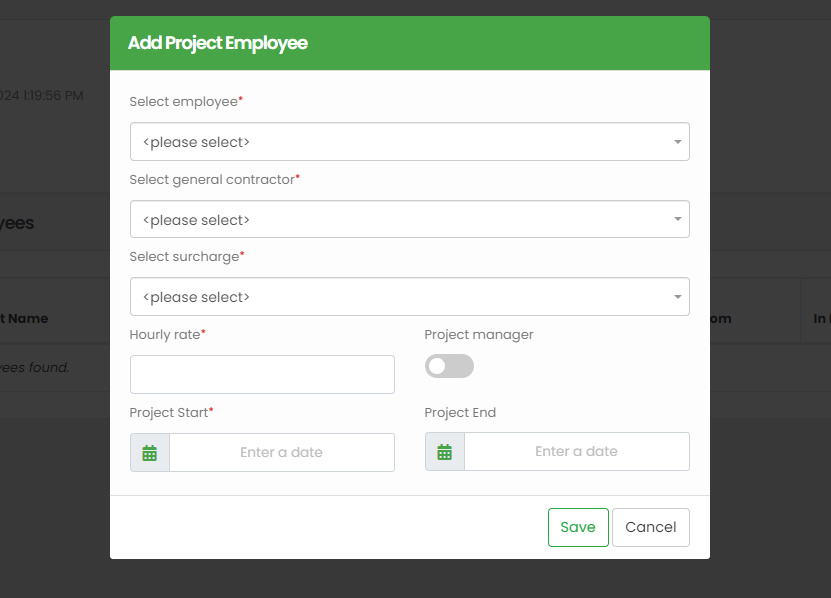
Clicking the add button a modal pops that allows the user to add a new project employee.

*Permissions needed: Manage project employees

A new pop up window will appear, so the user will be able to fill in the information that are needed, like:

  • The name of the employee
  • The general contractor
  • Select a surcharge (default, low, high etc.)
  • Set an hourly rate
  • Enable or disable the toggle, depending if this employee is gonna be the project manager or not
  • Starting and ending dates for the project

note: fields with * are required.

Click the “Save” button to save the changes.

Was this helpful?

Yes  No

Didn't find your answer? Contact Us

Previously
Configuration
Up Next
General Contractors
Developed by
  • Xcelsus GmbH
  • Xcelsus Hellas M.I.K.E.
SUPPORT
  • Knowledge Base
  • Video Manuals
SOCIAL
  • Facebook
  • Instagram
  • LinkedIn
  • Privacy Policy
  • Terms and Conditions
  • Cookie Policy (EU)
  • © 2026 xcelsus group. All Rights Reserved.

Manage Consent
To provide the best experiences, we use technologies like cookies to store and/or access device information. Consenting to these technologies will allow us to process data such as browsing behavior or unique IDs on this site. Not consenting or withdrawing consent, may adversely affect certain features and functions.
Functional Always active
The technical storage or access is strictly necessary for the legitimate purpose of enabling the use of a specific service explicitly requested by the subscriber or user, or for the sole purpose of carrying out the transmission of a communication over an electronic communications network.
Preferences
The technical storage or access is necessary for the legitimate purpose of storing preferences that are not requested by the subscriber or user.
Statistics
The technical storage or access that is used exclusively for statistical purposes. The technical storage or access that is used exclusively for anonymous statistical purposes. Without a subpoena, voluntary compliance on the part of your Internet Service Provider, or additional records from a third party, information stored or retrieved for this purpose alone cannot usually be used to identify you.
Marketing
The technical storage or access is required to create user profiles to send advertising, or to track the user on a website or across several websites for similar marketing purposes.
  • Manage options
  • Manage services
  • Manage {vendor_count} vendors
  • Read more about these purposes
View preferences
  • {title}
  • {title}
  • {title}