Workhours is a page meant to be used by an employee/user of Project Efforts in order to take all sort of actions (add, edit, delete, etc.) for his workhours for all the projects that he is a part of. An employee/user can also create pdf reports of his workhours.

View consists of a filter at the top of the page (“Workhour filer”). And a table filled with workhours (“Workhour reports”).
Filter consists of 4 dropdown lists:
- Year, where current year is preselected unless all available projects end before that, in which case the last year that a project is active is preselected.
- Month, where current month is preselected. There is also the option of selecting all the months by selecting <show all> option.
- Projects, where all active projects of a user are displayed. There is also the option of selecting all the projects by selecting <show all> option.
- Employees. This dropdown is only shown if the user accessing the page is a project manager (if no project is selected and the user is project manager for at least one of the loaded projects or if a project is selected and the user is a project manager for that project then the dropdown is visible to him, else this dropdown is not visible to the user).
The result using the filter is show in the table in “Workhour reports” portion of the page. If user is just an employee assigned to one or more projects, then he is going to see his workhours for all projects that he is assigned to (unless he has selected a project, then he is going to see workhours for this project).
If a user is a project manager for any project, then he is going to see workhours for all active employees (including himself) for all the projects he is a project manager in. If he selects a projects and he is a project manager in that project then again he is going to see workhours for all active employees (including himself) but only for the selected project.
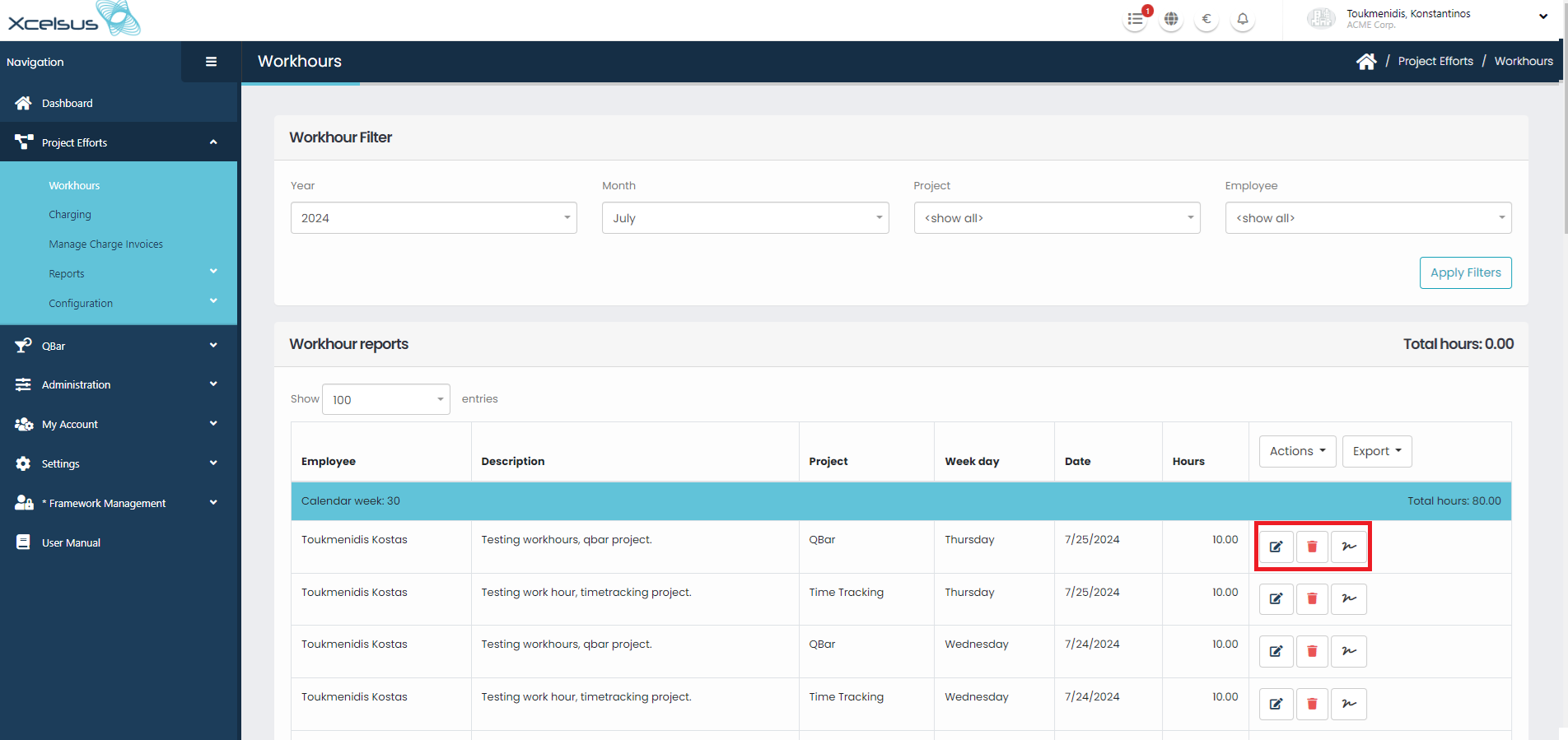
The 3 most basic actions are highlighted in red.
- Edit button
- Delete button
- Sign button
Which is the displayed order.
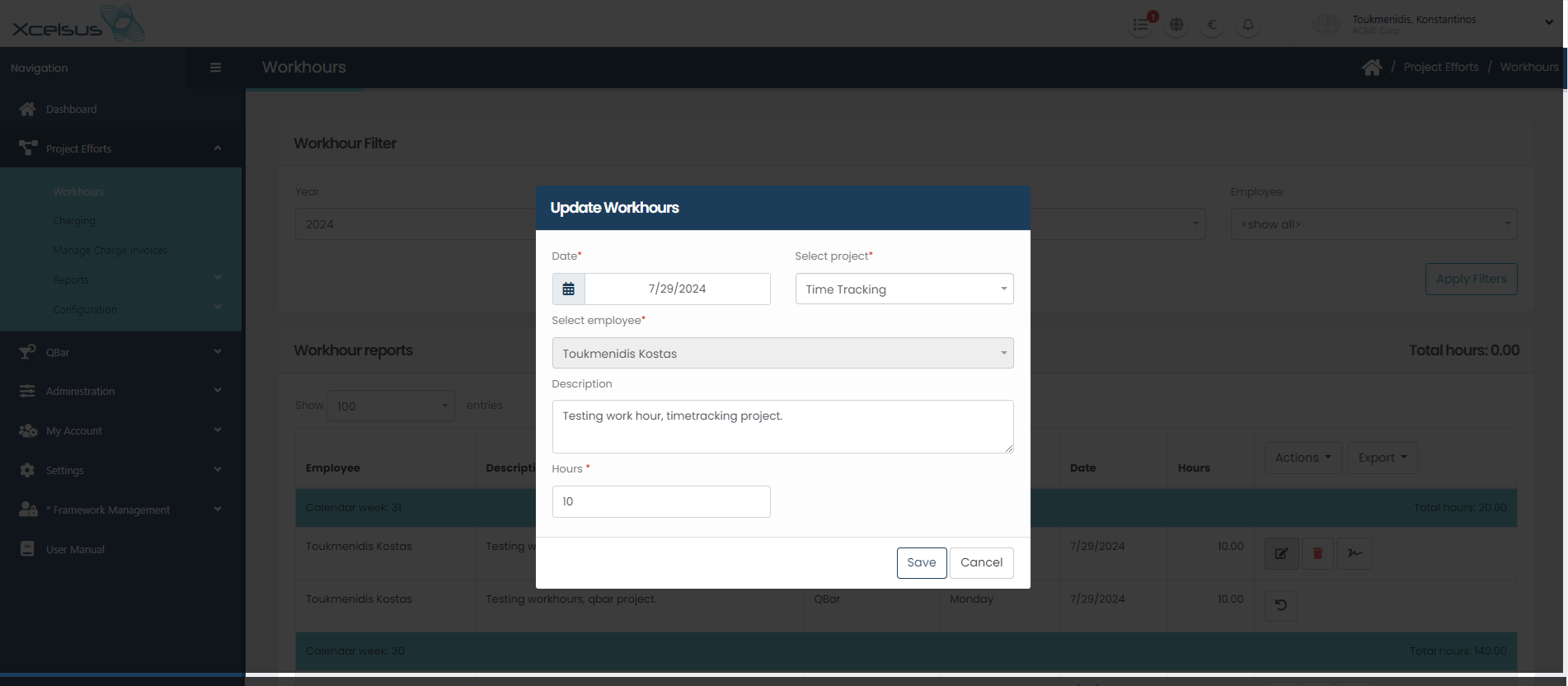
Clicking the edit button a modal pops that allows the user to edit a workhour.
Clicking the delete button a modal pops that confirms that the user wants to delete the workhour.

Clicking the sign button a modal pops that confirms that the user wants to sign the workhour. If a workhour is signed changes are no longer possible. Unless signature is removed.

After signing a workhour only 2 actions are available.
- Remove signature
- Approve workhour
Which is the display order.
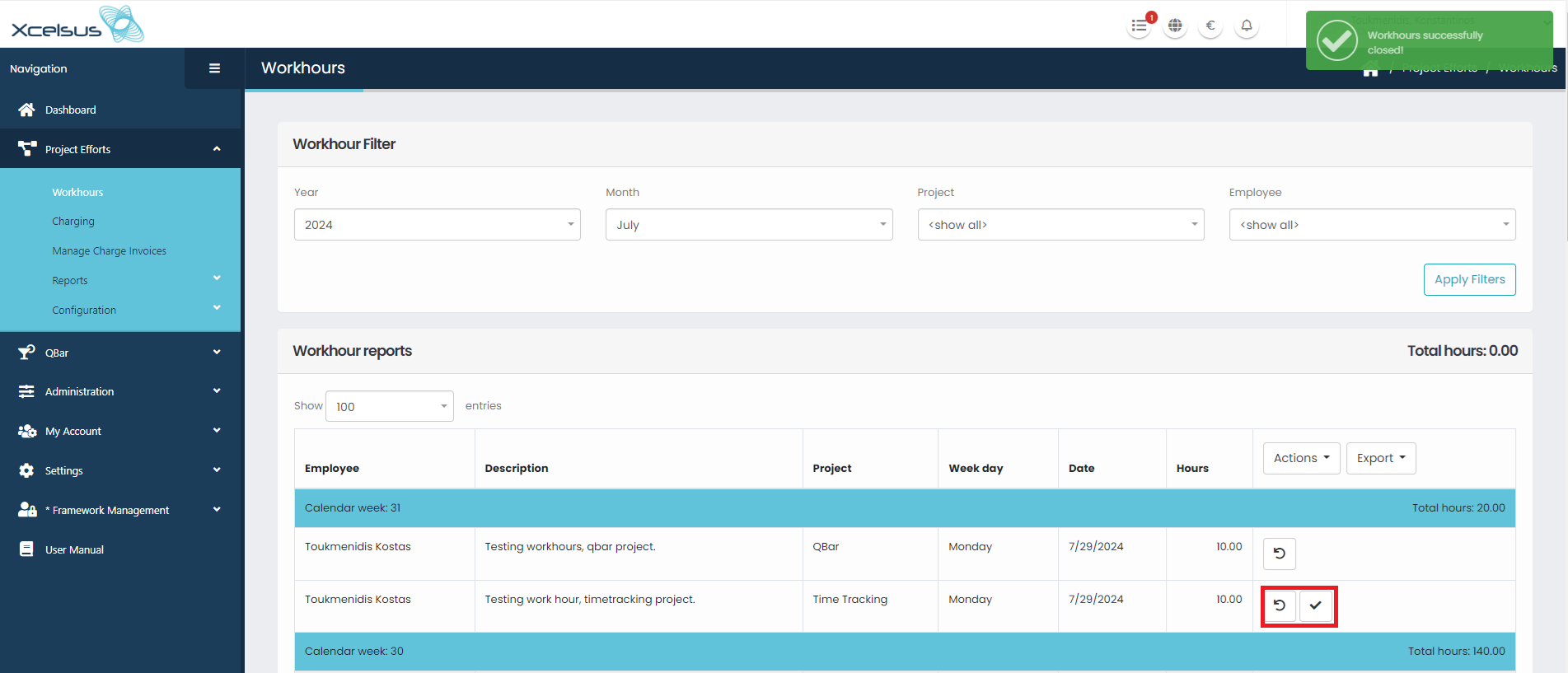
Clicking the remove signature button removes the signature for the workhour and allows the user to complete one of the initial actions (edit, delete & sign a workhour) once again.
*Permission needed: Remove workhours signature
Clicking the approve button a modal pops that confirms that the user wants to approve the workhour. If a workhour is approved the only possible actions is removing the approval.
*Permission needed: Approve workhours
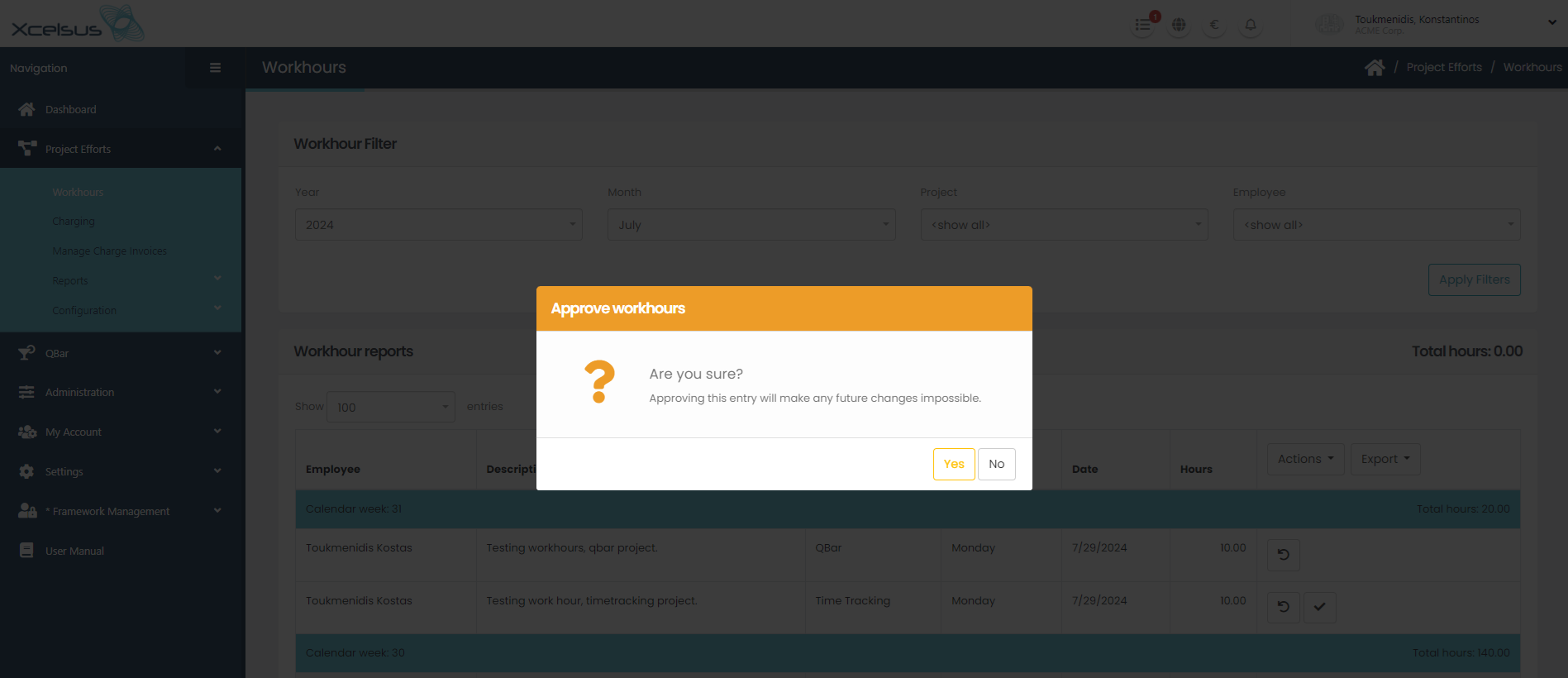
After a workhour is approved the only possible action is removing the approval using the remove approval button which is the only button left to click for that specific workhour.
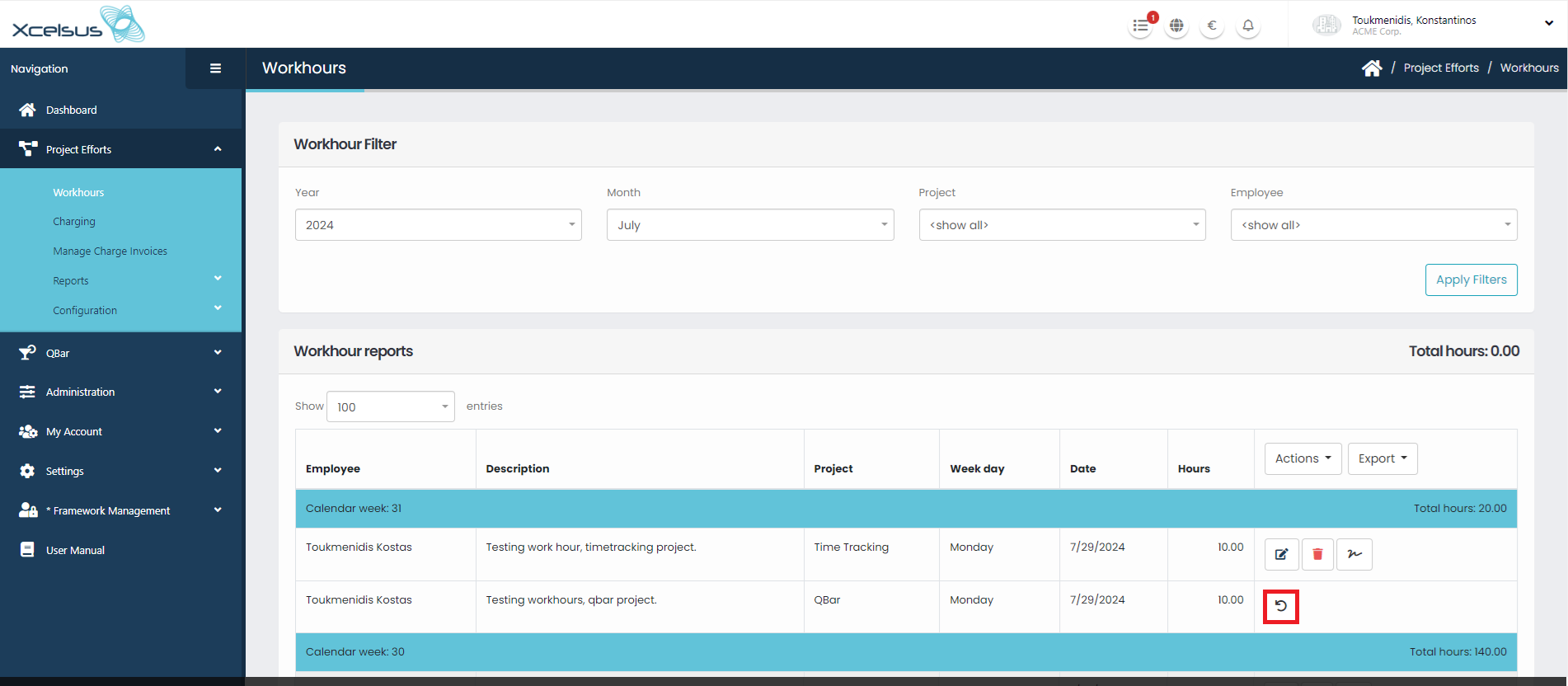
Clicking the remove approval button removes the approval for the workhour and allows the user to complete one of the initial actions (edit, delete & sign a workhour) once again.
*Permission needed: Remove workhours Approval
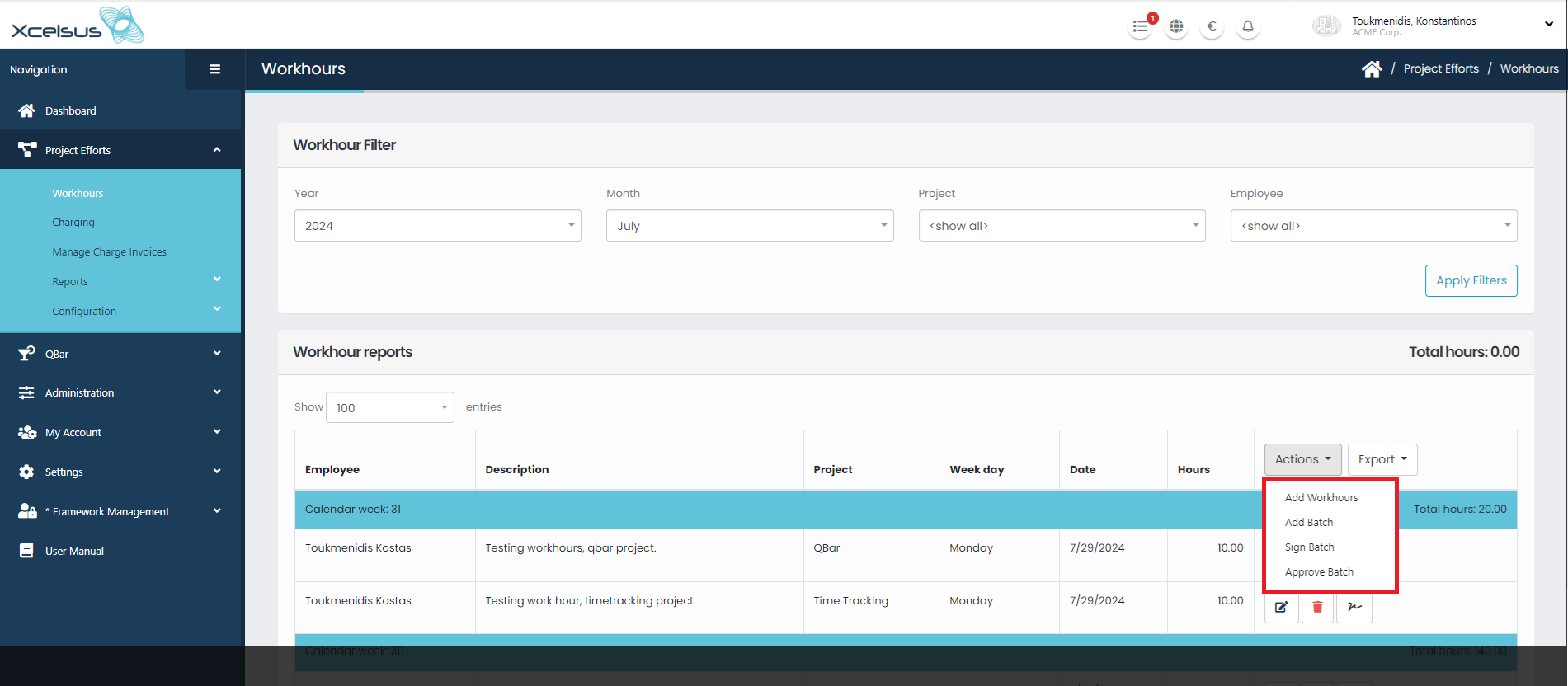
Clicking actions button a list of 4 buttons appear.
- Add Workhours
- Add Batch
- Sign Batch
- Approve Bath
Which is the display order.
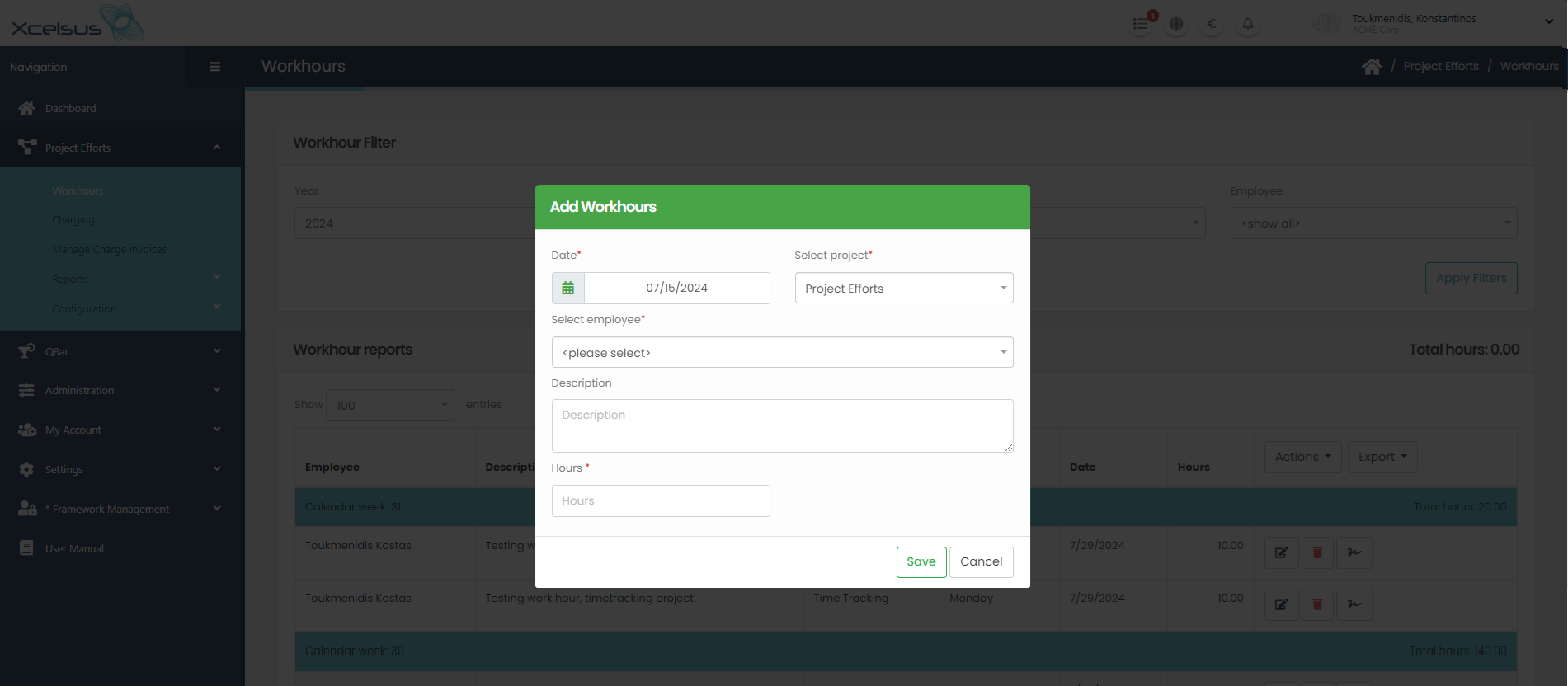
Clicking Add Workhours a modal pops that allows the user to add a workhour.
Clicking Add Batch user is moved to a new page in which he can add workhours for multiple days, based on a date range that he can select.

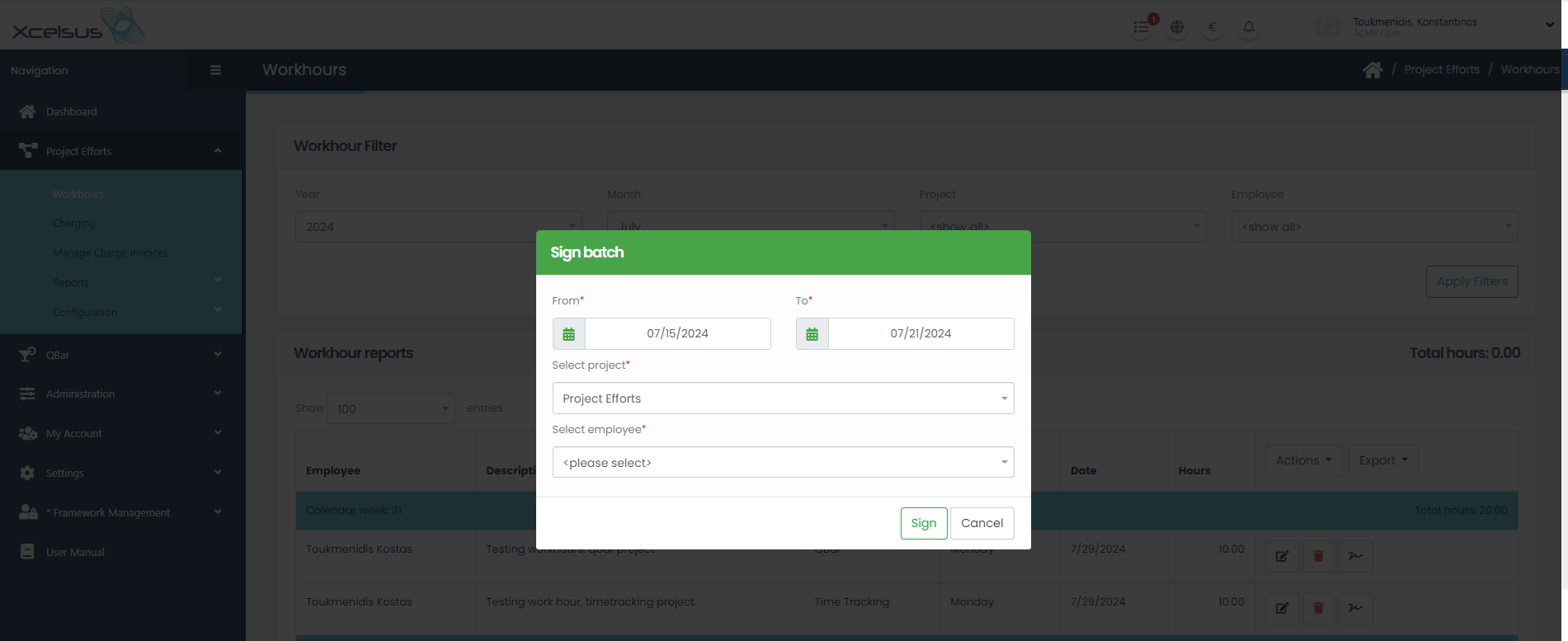
Clicking Sign Batch a modal pops that allows the user to sign workhours for multiple days, based on a date range that he can select.
*Permission needed: Sign Workhours
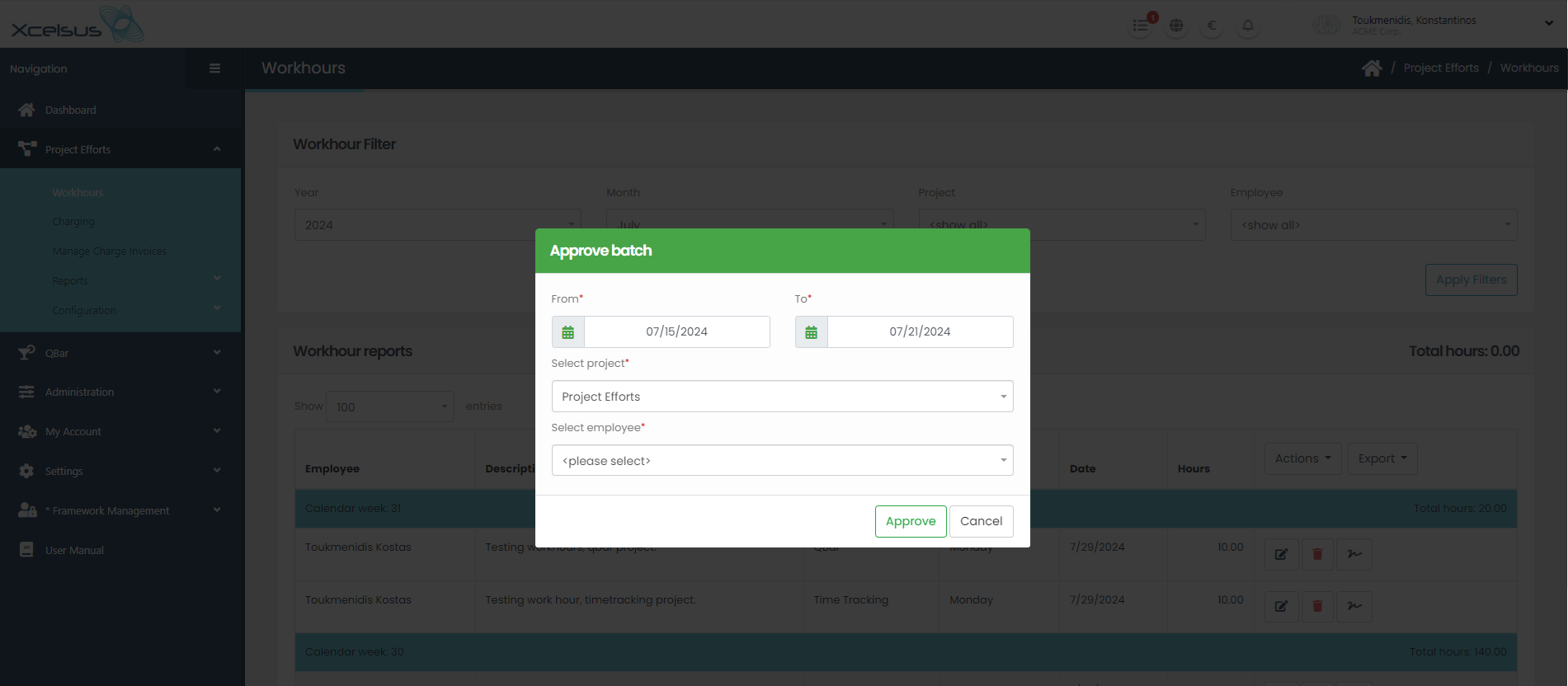
Clicking Approve Batch a modal pops that allows the user to approve workhours for multiple days, based on a date range that he can select.
*Permission needed: Approve Workhours
Clicking Export button there are 2 new buttons
- Workhour report
- Performance record
Both of these buttons create and download a file on the users computer. Currently the only option is a pdf file.
*Needed permissions: Export Workhour reports, Export Performance Record reports.